

In this article, we will learn how to add a picture to a header or footer in Microsoft excel 2010.
To add a picture to a Header/Footer, follow the below mentioned steps:

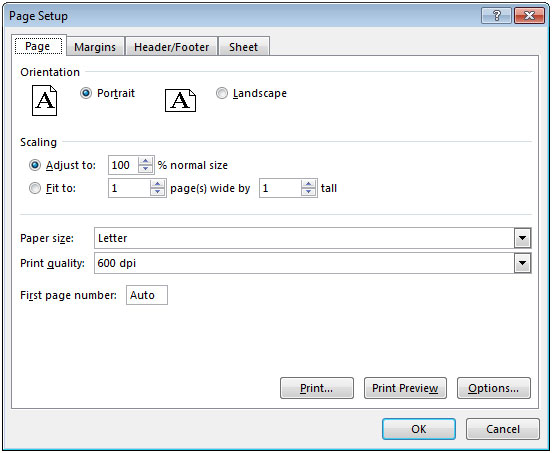
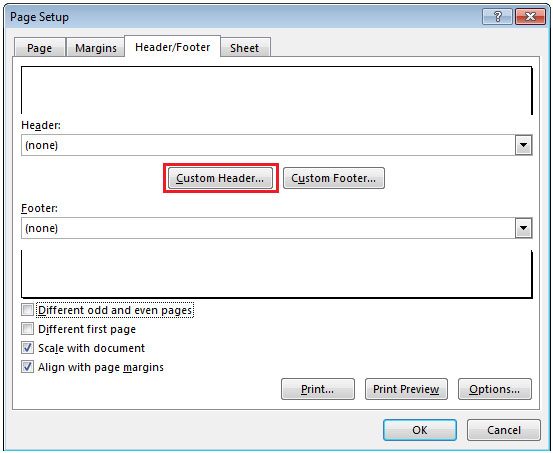
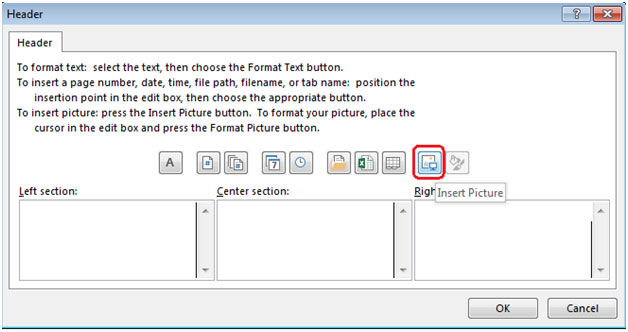

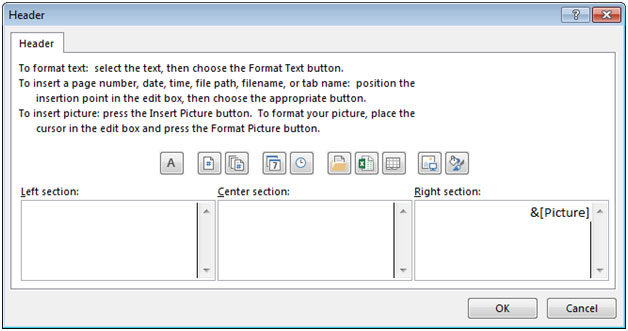

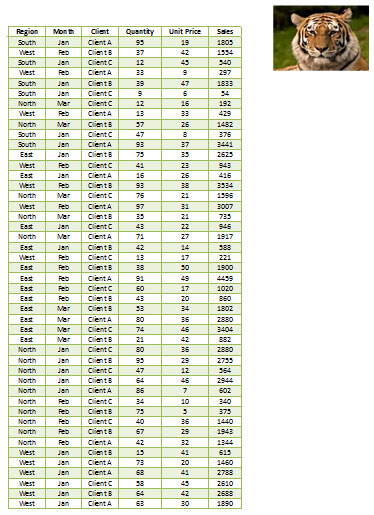
Similarly, you can add image in Footer section.
The applications/code on this site are distributed as is and without warranties or liability. In no event shall the owner of the copyrights, or the authors of the applications/code be liable for any loss of profit, any problems or any damage resulting from the use or evaluation of the applications/code.




Thank you for your efforts, nice site with clean and precise tips. Additional image requirements with full automation can be assigned to Picture Manager For Excel which is an add-in for Excel that provides a necessary control when working with images in Microsoft Excel.
Wouldn't it just be easier to use the ISERROR function nested in an IF function to print a blank space if the function produces an error? If it is done one the first formula and copied to the rest of the spreadsheet, it doesnt really take that much extra time to do. EX: =IF(ISERROR((B4*5)/S4)," ",(B4*5)/S4) or =IF(T4="","",IF(ISERROR((B4*5)/T4),B4*5,(B4*5)/T4)) While this may seem complicated, it covers many different errors. It is one of the most useful functions I know for making spreadsheets look professional.
Wouldn't it just be easier to use the ISERROR function nested in an IF function to print a blank space if the function produces an error? If it is done one the first formula and copied to the rest of the spreadsheet, it doesnt really take that much extra time to do. EX: =IF(ISERROR((B4*5)/S4)," ",(B4*5)/S4) or =IF(T4="","",IF(ISERROR((B4*5)/T4),B4*5,(B4*5)/T4)) While this may seem complicated, it covers many different errors. It is one of the most useful functions I know for making spreadsheets look professional.