

In this article, we will learn how to customize the date formatting. In Excel date format changed through custom formatting.
Custom Format: -We can use Custom Number Format to display a Number, date as per our requirement. It’s a tool from the old version of excel when there was no Conditional Formatting option in Excel. All conditional options are performed by using Custom Number Format.
To customize the date formatting, we understand the type of format and role.
In below-given table, we can see the types of formatting of date: -
| Description | Types | Role |
|---|---|---|
| Day | d | Day display without 0 if the number is lower than 10 |
| Day | dd | Day display with 0 if the number is lower than 10 |
| Day | ddd | Day display with the first 3 characters of day |
| Day | dddd | Day display with the full name of day |
| Month | m | Month display without 0 if the number is lower than 10 |
| Month | mm | Month display with 0 if the number is lower than 10 |
| Month | mmm | Month display with the first 3 characters of month |
| Month | mmmm | Month display with the full name of month |
| Year | yy or y | It will show the last 2 digit of year |
| Year | yyy | It will show the full year |
Let’s take an example to understand how we can customize the date formatting.
Firstly, we will learn how the each date formatting performs in excel.
Day, Month, and Year formatting (d/m/yy)
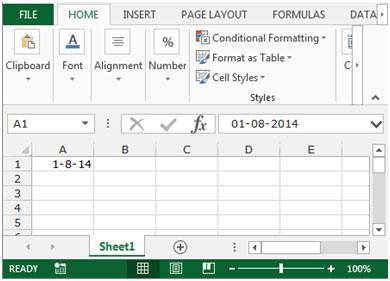
Cell A1 contains a date. We use the each date format one by one.

To day display without 0 if the number is lower than 10 (D), Month display without 0 if the number is lower than 10, and show the last 2 digit of year, follow below given steps.

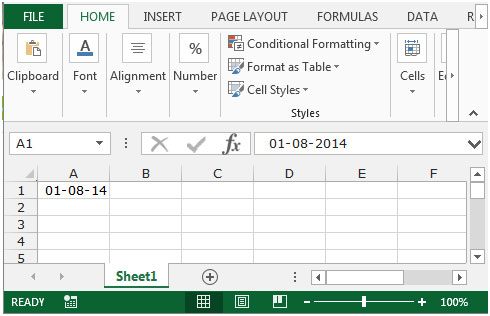
To day display with 0 if the number is lower than 10 (D), Month display with 0 if the number is lower than 10, and show the last 2 digit of year, follow below given steps.

To day display with the first 3 characters of day, month displaywith the first 3 characters of month, and show the last 4 digit of year, follow below given steps.


To the day display with the full characters of the day, month display with the full characters of the month, and to show the last 4 digit of the year, follow below given steps.
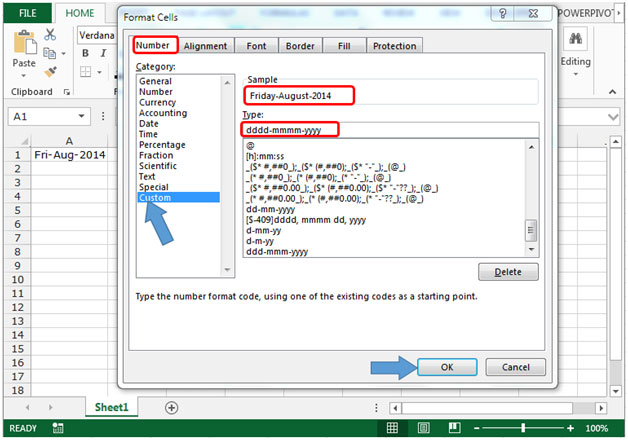
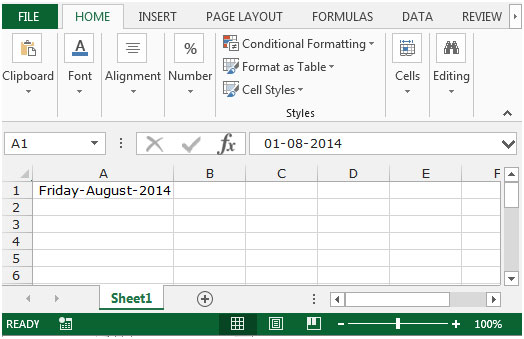
These are the ways to customize the date formatting in different ways by using the custom format in Microsoft Excel.
If you liked our blogs, share it with your friends on Facebook. And also you can follow us on Twitter and Facebook.
We would love to hear from you, do let us know how we can improve, complement or innovate our work and make it better for you. Write us at info@exceltip.com
The applications/code on this site are distributed as is and without warranties or liability. In no event shall the owner of the copyrights, or the authors of the applications/code be liable for any loss of profit, any problems or any damage resulting from the use or evaluation of the applications/code.




How about retrieving a date code from the date? In most cases we need a yyww date code. I can get this after completing prior steps through 4 other columns, but it would great to only have one equation to work with, or fewer steps.
your example does not work.......period!!! I have a date of 6/20/12 and when I put yy into the custom number window, it returns 05. Not even close.
If I have a pdf format and I exported it to excel with a date: 2/11/2015 3:04:27 all in one cell, how do I separate the two to convert the date to: 02/11/2015? I have a long list of names with different dates. I don't want the time there.
Hello Vicki,
Please post your query @ www.excelforum.com, you will get immediate reply as per your requirement.
Have a nice day!!!
Thanks
Site Admin
i want a date type like this so how can i customized
01-sep-2014
Hi Trupesh,
You can select the cell where the date is in (03/13) format for example. Right click on the cell and select format cells. In Number Tab —> click on Date —> Select 1-Sep-2014. Click on Ok
You can also use another way. Right click on the cell and select format cells. In Number Tab —> click on Custom —> In Type write d-mmm-yyyy. Click on Ok