ExcelTip.com
ExcelTip.com
Account Icon Account Icon Account Icon
Google Exceltip.com
JOIN OUR NEWSLETTER
  and receive for joining:
Free eBook Learn More!
Free Excel ADD-IN
Free Weekly Excel Tip
4 e-books in cd-rom
F1 Formulas & Functions
F1 EXCEL
F1 eBook (Spanish)
F1 EXCEL
Financial Statements.xls
 

» Moving Between Precedent and Dependent Cells
Using keyboard shortcuts

To move to a precedent cell(s):

Select a cell containing a formula and press Ctrl+[.
The Ctrl+[ shortcut is one of the most important keyboard shortcuts, and is highly recommended.
It can trace a precedent cell(s) in the active sheet, in another sheet in the workbook, or in a sheet in another open workbook, and it can open a closed workbook and select the precedent cell(s) after opening.

Using the mouse

Add three icons to the Standard toolbar:

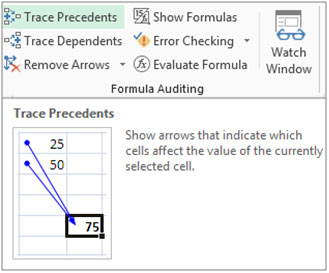
Trace Precedents
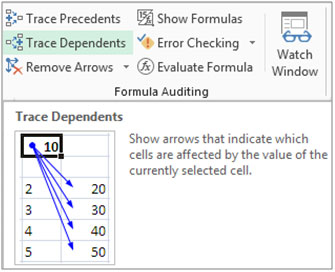
Trace Dependents
Remove All Arrows


To add an icon to the toolbar:

1. Right-click a toolbar, and then select Customize from the shortcut menu.
2. Select the Commands tab, and from Categories, select Tools.
3. Drag the three icons from the Commands area to the Standard toolbar and close the Customize dialog box.

To use the Trace Precedents or Trace Dependents icons to move between linked cells in the same sheet:

1. Type a number into cell A1 and then type the formula =A1 into cell D1.
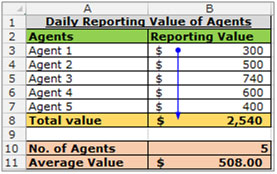
2. Select cell D1 and click Trace Precedents. Double-click the blue arrow between the cells to move between the precedent cell and the dependent cell.

To use the Trace Precedents and Trace Dependents icons to move between linked cells outside the sheet:
1. Insert a link formula =[Book1.xls]Sheet1!$A$1 into cell A1 in an open workbook.
2. Select cell A1 in the new workbook and click Trace Precedents. Double-click the dotted-line arrow to open the Go To dialog box, select the address, and then click

To move to a precedent cell:

1. From the Tools menu, select Options.
2. Select the Edit tab, and deselect the Edit directly in cell checkbox.
3. Select a cell with a linked formula and double click it to move to a precedent cell.

To return to the last four selected addresses:

The Go To dialog box holds the last four references moved to via Go To.
Press F5 to open the Go To dialog box (the last step is shown in the Reference box). Check the address and click OK.


Screenshot // Moving Between Precedent and Dependent Cells

Moving Between Precedent and Dependent CellsMoving Between Precedent and Dependent CellsMoving Between Precedent and Dependent Cells

Moving Between Precedent and Dependent Cells
Rate this tip
12 34 5
  RATING: 4.16
  VIEWS: 24705

READER COMMENTS (view all comments)


No comments have been submitted.


REGISTERED USERS - Click here to post comments


GUESTS (Click here to register)
Name
Comment Title
Comments

A Mathematician Plays the Stock Market

Excel 2002 Power Programming with VBA

MP Managerial Accounting w/ Topic Tackler, Net Tutor, & PowerWeb

Microsoft Excel VBA Programming for the Absolute Beginner

Financial Shenanigans : How to Detect Accounting Gimmicks & Fraud in Financial Reports

Seven Habits Of Highly Effective People

RELATED MICROSOFT EXCEL TIPS


Convert PDF Files to Excel


Excel VBA books
Accounting books
Business Plans
MS Office books
Taxes books

VIEW ALL BOOKS


  Advertise With Us                               

Tips

Add-In in VBA | Applications - Word, Outlook in VBA | Array Formulas | Cells, Ranges, Rows, and Columns in VBA | Counting | Custom Functions | Custom Functions in VBA | Database Formulas | Database in VBA | Date & Time Formulas | Date & Time in VBA | Events in VBA | Excel 2003 | Excel Chart | Excel Consolidating | Excel Counting | Excel Custom Functions using VBA | Excel Customizing | Excel Data | Excel Dates | Excel Editing | Excel Files | Excel Filter | Excel Format | Excel Formula | Excel General | Excel Grouping and Outlining | Excel Importing Text Files | Excel Information | Excel Keyboard Shortcuts | Excel Loan Formulas | Excel Macros - VBA | Excel Pivot Tables | Excel Printing | Excel Range Name | Excel Security - Protection | Excel Sorting | Excel Style | Excel Subtotals | Excel Summing | Excel Text | Excel Time | Excel Tools | Excel Worksheet, Workbook | Files, Workbook, and Worksheets in VBA | Financial Formulas | Formating in VBA | General Topics in VBA | Import and Export in VBA | Information Formulas | Keyboard & Other Shortcuts in VBA | Keyboard Formula Shortcuts | Links between Worksheet and Workbooks | Links in VBA | Logical Formulas | Lookup Formulas | Mail - Send and Receive in VBA | Menus, Toolbars, Status bar in VBA | Modules, Class Modules in VBA | Other Q&A Formulas | Printing in VBA | Protecting in VBA | Summing | Text Formulas | User Forms, Input boxes in VBA | Using Loops | Working with Formulas |

Tips by Version

Microsoft Excel 97 | Microsoft Excel 2000 | Microsoft Excel 2002 | All Microsoft Excel Versions | New in Excel 2002 | New in Excel 2003 - Office 11

Website

Home | Tip of Hour | Recommended Tips | Most Viewed Tips | Tips by Version | Submit a Tip | My Tips
Microsoft Excel Tutorials | Excel Links | Write for Us | About Us | Search Results | Tip Archives | Excel Forum | Excel Forum Archives

Excel Book

Excel 97 Book | Excel 2000 Book | Excel 2002 Book | Excel XP Book | Book Store

Terms and Conditions of use
The applications/code on this site are distributed as is and without warranties or liability. In no event shall the owner of the copyrights, or the authors of the applications/code be liable for any loss of profit, any problems or any damage resulting from the use or evaluation of the applications/code.

Copyright © 2003 ExcelTip.com
Microsoft, Microsoft Excel is a U.S. registered trademark of Microsoft Corporation
Site Developed By: Varien