ExcelTip.com
ExcelTip.com
Account Icon Account Icon Account Icon
Google Exceltip.com
JOIN OUR NEWSLETTER
  and receive for joining:
Free eBook Learn More!
Free Excel ADD-IN
Free Weekly Excel Tip
4 e-books in cd-rom
F1 Formulas & Functions
F1 EXCEL
F1 eBook (Spanish)
F1 EXCEL
Financial Statements.xls
 

» Retrieving Unique Values From A List
Problem:

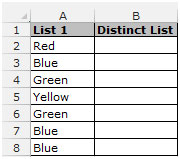
Column A contains a list of values, each of which may appear more than once.
We want to create a list in column B in which each value from column A may only appear once.

Solution:

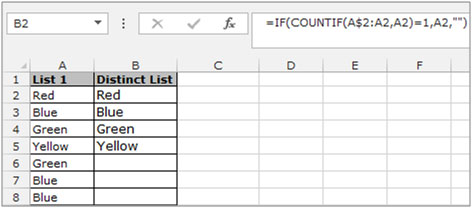
Use the INDEX, MATCH, and COUNTIF functions as shown in the following Array formula:
{=INDEX($A$2:$A$8,MATCH(0,COUNTIF($B$2:B2,$A$2:$A$8),0))}

Note:
The first cell in the unique list (column B) must remain empty.
The formula should be entered in the second cell and copied down until the #N/A error is returned.


List_________Distinct List
Red
Blue_________Red
Green________Blue
Yellow_______Green
Green________Yellow
Blue_________#N/A
Blue

Screenshot // Retrieving Unique Values From A List

Retrieving Unique Values From A List
Rate this tip
12 34 5
  RATING: 3.10
  VIEWS: 25457

READER COMMENTS (view all comments)


macroll wrote on May 11, 2005 11:03 EST
man, i can't get this to work???
Reply: macroll
Alan wrote on May 12, 2005 01:39 EST
Hi macroll,

[QUOTE=macroll]man, i can't get this to work???[/QUOTE]I haven't tried to decipher the tip above, but this should do what you want:

If you have a list in A1:A13 as follows:

Alan
Bob
Charlie
Alan
Alan
Alan
Charlie
Dave
Charlie
Bob
Edgar
Bob
Bob

In B1 enter either "Alan" or link to A1

In B2 enter this as an array formula:

{=OFFSET($A$1,MATCH(0,MMULT(--TRANSPOSE(TRANSPOSE($A$1:$A$13)=B$1:B1),ROW(INDIRECT("1:"&ROW()-1))/ROW(INDIRECT("1:"&ROW()-1))),0)-1,0,1,1)}

To enter the array formula, type it in without the curly brackets, and then enter using Shift-Ctrl-Enter and excel will put the braces on the formula.

Copy that formula down to B2:B13.

It returns 'Not Applicable' in B6:B13 since there are no more unique entries. If you want to show something else (or a blank cell), just wrap it in a check using the ISNA function. That would be as follows (in B2):

{=IF(ISNA(OFFSET($A$1,MATCH(0,MMULT(--TRANSPOSE(TRANSPOSE($A$1:$A$13)=B$1:B1),ROW(INDIRECT("1:"&ROW()-1))/ROW(INDIRECT("1:"&ROW()-1))),0)-1,0,1,1)),"",OFFSET($A$1,MATCH(0,MMULT(--TRANSPOSE(TRANSPOSE($A$1:$A$13)=B$1:B1),ROW(INDIRECT("1:"&ROW()-1))/ROW(INDIRECT("1:"&ROW()-1))),0)-1,0,1,1))}

I prefer to return #NA myself and trap for that whereever I use the results - just a preference though.

HTH,

Alan.
Very Helpful Formulae
Sid wrote on May 31, 2005 00:58 EST
Good Stuff
Something missing
someone wrote on July 20, 2005 16:14 EST
In the initial formula there is something the author forgot to mention:
B3 Formula: {=INDEX($A$2:$A$8,MATCH(0,COUNTIF($B2:B2,$A$2:$A$8),0))}
B4 Formula: {=INDEX($A$2:$A$8,MATCH(0,COUNTIF($B2:B3,$A$2:$A$8),0))}
B5 Formula: {=INDEX($A$2:$A$8,MATCH(0,COUNTIF($B2:B4,$A$2:$A$8),0))}

And so on... (First array in COUNTIF should be all the cells above the current cell).

Also, to enter these formulas, you need to press CTRL+SHIFT+ENTER when you're done entering the formula. This will convert the formula into an array formula.

Hope it helps.
got some problem
siju wrote on July 23, 2005 07:47 EST
it is not work out
Reply: siju
Alan wrote on July 27, 2005 02:04 EST
Hi siju,

[QUOTE=siju]it is not work out[/QUOTE]In what way?

Alan.
Advanced Filter - unique?
littleIdiot wrote on December 31, 1969 19:00 EST
How is this different to doing the following?
Data > Filter > Advanced Filter > Unique records only

gjcase wrote on August 26, 2005 11:33 EST
This is different than using the advanced filter in that the filter list does not update if the list changes, whereas this does.
Reply: gjcase
Alan wrote on August 28, 2005 17:23 EST
Hi gjcase,

[QUOTE=gjcase]This is different than using the advanced filter in that the filter list does not update if the list changes, whereas this does.[/QUOTE]If you want an autofilter / advanced filter to automatically update you will need to use VBA.

Alan.
Re Alan
Donna wrote on December 31, 1969 19:00 EST
Alan formula worked good, but when I change the $A$13 to the $74 for the number in MY list, I get error. Don't know what I did wrong..
a thousand thankyous
min5h wrote on December 31, 1969 19:00 EST
I have been looking for the simple fix to this excel problem for ages, wondering about it for years. Up to now I have been going into MS access and running a count query on the table with all the extra entries. This suits me perfectly:

Advanced Filter - unique?
littleIdiot wrote on December 31, 1969 18:00 EST
How is this different to doing the following?
Data > Filter > Advanced Filter > Unique records only

Can't get the other formula's to work but thanks very much for the advanced filter tip.


REGISTERED USERS - Click here to post comments


GUESTS (Click here to register)
Name
Comment Title
Comments

The Financial Numbers Game: Detecting Creative Accounting Practices

Writing Excel Macros with VBA, 2nd Edition

Essentials of Investments with Standard & Poor's Educational Version of Market Insight + PowerWeb + Stock Trak Coupon

The McGraw-Hill 36-Hour Course in Finance for Nonfinancial Managers

Financial Risk Manager Handbook, Second Edition

The Intelligent Investor: The Classic Bestseller on Value Investing

RELATED MICROSOFT EXCEL TIPS


Convert PDF Files to Excel


Excel VBA books
Accounting books
Business Plans
MS Office books
Taxes books

VIEW ALL BOOKS


  Advertise With Us                               

Tips

Add-In in VBA | Applications - Word, Outlook in VBA | Array Formulas | Cells, Ranges, Rows, and Columns in VBA | Counting | Custom Functions | Custom Functions in VBA | Database Formulas | Database in VBA | Date & Time Formulas | Date & Time in VBA | Events in VBA | Excel 2003 | Excel Chart | Excel Consolidating | Excel Counting | Excel Custom Functions using VBA | Excel Customizing | Excel Data | Excel Dates | Excel Editing | Excel Files | Excel Filter | Excel Format | Excel Formula | Excel General | Excel Grouping and Outlining | Excel Importing Text Files | Excel Information | Excel Keyboard Shortcuts | Excel Loan Formulas | Excel Macros - VBA | Excel Pivot Tables | Excel Printing | Excel Range Name | Excel Security - Protection | Excel Sorting | Excel Style | Excel Subtotals | Excel Summing | Excel Text | Excel Time | Excel Tools | Excel Worksheet, Workbook | Files, Workbook, and Worksheets in VBA | Financial Formulas | Formating in VBA | General Topics in VBA | Import and Export in VBA | Information Formulas | Keyboard & Other Shortcuts in VBA | Keyboard Formula Shortcuts | Links between Worksheet and Workbooks | Links in VBA | Logical Formulas | Lookup Formulas | Mail - Send and Receive in VBA | Menus, Toolbars, Status bar in VBA | Modules, Class Modules in VBA | Other Q&A Formulas | Printing in VBA | Protecting in VBA | Summing | Text Formulas | User Forms, Input boxes in VBA | Using Loops | Working with Formulas |

Tips by Version

Microsoft Excel 97 | Microsoft Excel 2000 | Microsoft Excel 2002 | All Microsoft Excel Versions | New in Excel 2002 | New in Excel 2003 - Office 11

Website

Home | Tip of Hour | Recommended Tips | Most Viewed Tips | Tips by Version | Submit a Tip | My Tips
Microsoft Excel Tutorials | Excel Links | Write for Us | About Us | Search Results | Tip Archives | Excel Forum | Excel Forum Archives

Excel Book

Excel 97 Book | Excel 2000 Book | Excel 2002 Book | Excel XP Book | Book Store

Terms and Conditions of use
The applications/code on this site are distributed as is and without warranties or liability. In no event shall the owner of the copyrights, or the authors of the applications/code be liable for any loss of profit, any problems or any damage resulting from the use or evaluation of the applications/code.

Copyright © 2003 ExcelTip.com
Microsoft, Microsoft Excel is a U.S. registered trademark of Microsoft Corporation
Site Developed By: Varien