

1) What is Visual Basic in Excel?
2) How to use VBA in Excel?
3) How to create User defined function?
4) How to write Macro?
Excel provides the user with a large collection of ready-made functions, more than enough to satisfy the average user. Many more can be added by installing the various add-ins that are available. Most calculations can be achieved with what is provided, but it isn't long before you find yourself wishing that there was a function that did a particular job, and you can't find anything suitable in the list. You need a UDF. A UDF (User Defined Function) is simply a function that you create yourself with VBA. UDFs are often called "Custom Functions". A UDF can remain in a code module attached to a workbook, in which case it will always be available when that workbook is open. Alternatively you can create your own add-in containing one or more functions that you can install into Excel just like a commercial add-in. UDFs can be accessed by code modules too. Often UDFs are created by developers to work solely within the code of a VBA procedure and the user is never aware of their existence. Like any function, the UDF can be as simple or as complex as you want. Let's start with an easy one...
Yes, I know you could do this in your head! The concept is very simple so you can concentrate on the technique. Suppose you need a function to calculate the area of a rectangle. You look through Excel's collection of functions, but there isn't one suitable. This is the calculation to be done:
AREA = LENGTH x WIDTH
Open a new workbook and then open the Visual Basic Editor (Tools > Macro > Visual Basic Editor or ALT+F11).
You will need a module in which to write your function so choose Insert > Module. Into the empty module type: Function Area and press ENTER.The Visual Basic Editor completes the line for you and adds an End Function line as if you were creating a subroutine.So far it looks like this...
Function Area()

End Function
Place your cursor between the brackets after "Area". If you ever wondered what the brackets are for, you are about to find out! We are going to specify the "arguments" that our function will take (an argument is a piece of information needed to do the calculation). Type Length as double, Width as double and click in the empty line underneath. Note that as you type, a scroll box pops-up listing all the things appropriate to what you are typing.

This feature is called Auto List Members. If it doesn't appear either it is switched off (turn it on at Tools > Options > Editor) or you might have made a typing error earlier. It is a very useful check on your syntax. Find the item you need and double-click it to insert it into your code. You can ignore it and just type if you want. Your code now looks like this...
Function Area(Length As Double, Width As Double)

End Function
Declaring the data type of the arguments is not obligatory but makes sense. You could have typed Length, Width and left it as that, but warning Excel what data type to expect helps your code run more quickly and picks up errors in input. The double data type refers to number (which can be very large) and allows fractions. Now for the calculation itself. In the empty line first press the TAB key to indent your code (making it easier to read) and type Area = Length * Width. Here's the completed code...
Function Area(Length As Double, Width As Double)
    Area = Length * Width
End Function
You will notice another of the Visual Basic Editor's help features pop up as you were typing, Auto Quick Info...

It isn't relevant here. Its purpose is to help you write functions in VBA, by telling you what arguments are required. You can test your function right away. Switch to the Excel window and enter figures for Length and Width in separate cells. In a third cell enter your function as if it were one of the built-in ones. In this example cell A1 contains the length (17) and cell B1 the width (6.5). In C1 I typed =area(A1,B1) and the new function calculated the area (110.5)...

Sometimes, a function's arguments can be optional. In this example we could make the Width argument optional. Supposing the rectangle happens to be a square with Length and Width equal. To save the user having to enter two arguments we could let them enter just the Length and have the function use that value twice (i.e. multiply Length x Length). So the function knows when it can do this we must include an IF Statement to help it decide. Change the code so that it looks like this...
Function Area(Length As Double, Optional Width As Variant)
    If IsMissing(Width) Then
        Area = Length * Length
    Else
        Area = Length * Width
    End If
End Function
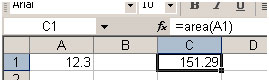
Note that the data type for Width has been changed to Variant to allow for null values. The function now allows the user to enter just one argument e.g. =area(A1).The IF Statement in the function checks to see if the Width argument has been supplied and calculates accordingly...
I like to keep a check on my car's fuel consumption so when I buy fuel I make a note of the mileage and how much fuel it takes to fill the tank. Here in the UK fuel is sold in litres. The car's milometer (OK, so it's an odometer) records distance in miles. And because I'm too old and stupid to change, I only understand MPG (miles per gallon). Now if you think that's all a bit sad, how about this. When I get home I open up Excel and enter the data into a worksheet that calculates the MPG for me and charts the car's performance. The calculation is the number of miles the car has travelled since the last fill-up divided by the number of gallons of fuel used...
MPG = (MILES THIS FILL - MILES LAST FILL) / GALLONS OF FUEL
but because the fuel comes in litres and there are 4.546 litres in a gallon..
MPG = (MILES THIS FILL - MILES LAST FILL) / LITRES OF FUEL x 4.546
Here's how I wrote the function...
Function MPG(StartMiles As Integer, FinishMiles As Integer, Litres As Single)
    MPG = (FinishMiles - StartMiles) / Litres * 4.546
End Function
and here's how it looks on the worksheet...

Not all functions perform mathematical calculations. Here's one that provides information...
I am often asked if there is a date function that gives the day of the week as text (e.g. Monday). The answer is no*, but it's quite easy to create one. (*Addendum: Did I say no? Check the note below to see the function I forgot!). Excel has the WEEKDAY function, which returns the day of the week as a number from 1 to 7. You get to choose which day is 1 if you don't like the default (Sunday). In the example below the function returns "5" which I happen to know means "Thursday".

But I don't want to see a number, I want to see "Thursday". I could modify the calculation by adding a VLOOKUP function that referred to a table somewhere containing a list of numbers and a corresponding list of day names. Or I could have the whole thing self-contained with multiple nested IF statements. Too complicated! The answer is a custom function...
Function DayName(InputDate As Date)
    Dim DayNumber As Integer
    DayNumber = Weekday(InputDate, vbSunday)
    Select Case DayNumber
        Case 1
            DayName = "Sunday"
        Case 2
            DayName = "Monday"
        Case 3
            DayName = "Tuesday"
        Case 4
            DayName = "Wednesday"
        Case 5
            DayName = "Thursday"
        Case 6
            DayName = "Friday"
        Case 7
            DayName = "Saturday"
    End Select
End Function
I've called my function "DayName" and it takes a single argument, which I call "InputDate" which (of course) has to be a date. Here's how it works...
Here's how it looks on the worksheet...

If a workbook has a VBA code module attached to it that contains custom functions, those functions can be easily addressed within the same workbook as demonstrated in the examples above. You use the function name as if it were one of Excel's built-in functions.
You can also find the functions listed in the Function Wizard (sometimes called the Paste Function tool). Use the wizard to insert a function in the normal way (Insert > Function).
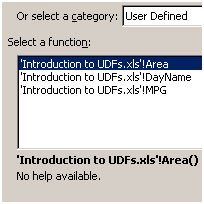
Scroll down the list of function categories to find User Defined and select it to see a list of available UDFs...


You can see that the user defined functions lack any description other than the unhelpful "No help available" message, but you can add a short description...
Make sure you are in the workbook that contains the functions. Go to Tools > Macro > Macros. You won't see your functions listed here but Excel knows about them! In the Macro Name box at the top of the dialog, type the name of the function, then click the dialog's Options button. If the button is greyed out either you've spelled the function name wrong, or you are in the wrong workbook, or it doesn't exist! This opens another dialog into which you can enter a short description of the function. Click OK to save the description and (here's the confusing bit) click Cancel to close the Macro dialog box. Remember to Save the workbook containing the function. Next time you go to the Function Wizard your UDF will have a description...

Like macros, user defined functions can be used in any other workbook as long as the workbook containing them is open. However it is not good practice to do this. Entering the function in a different workbook is not simple. You have to add its host workbook's name to the function name. This isn't difficult if you rely on the Function Wizard, but clumsy to write out manually. The Function Wizard shows the full names of any UDFs in other workbooks...
If you open the workbook in which you used the function at a time when the workbook containing the function is closed, you will see an error message in the cell in which you used the function. Excel has forgotten about it! Open the function's host workbook, recalculate, and all is fine again. Fortunately there is a better way.
If you want to write User Defined Functions for use in more than one workbook the best method is to create an Excel Add-In. Find out how to do this in the tutorial Build an Excel Add-In.
I really ought to know better! Never, ever, say never! Having told you that there isn't a function that provides the day's name, I have now remembered the one that can. Look at this example...
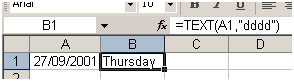
The TEXT function returns the value of a cell as text in a specific number format. So in the example I could have chosen =TEXT(A1,"ddd") to return "Thu", =TEXT(A1,"mmmm") to return "September" etc. The Excel's help has some more examples of ways to use this function.
If you liked our blogs, share it with your friends on Facebook. And also you can follow us on Twitter and Facebook.
We would love to hear from you, do let us know how we can improve, complement or innovate our work and make it better for you. Write us at info@exceltip.com
The applications/code on this site are distributed as is and without warranties or liability. In no event shall the owner of the copyrights, or the authors of the applications/code be liable for any loss of profit, any problems or any damage resulting from the use or evaluation of the applications/code.




Hi Gopichand,
Please post your query www.excelforum.com
how to write st,nd,th symbol excel sheet
Can you please fix this page so that the pictures appear? On my browser, they are not loading.
Thanks.